A redesign should improve your results, yet many sites lose organic traffic after launch. The cause is rarely the new design itself. It is usually what changed underneath: URLs that moved without redirects, pages that disappeared, canonical tags that point to the wrong place, or a staging "noindex" that went live by mistake. This guide shows how to handle a website redesign without losing SEO, whether you are changing platform, restructuring pages or moving to a new domain. It follows Google's own migration guidance and adds the practical checks that save projects.
First, decide what kind of change this is
The steps depend on what actually changes.
| Change | Typical risk | Key tasks |
|---|---|---|
| Visual redesign, same URLs and content | Low to medium | Keep content, titles, headings and internal links; check performance |
| New CMS or platform, same domain | Medium to high | URL mapping, redirects where URLs change, structured data and metadata parity |
| URL structure change | High | Full URL map, 301 redirects, update internal links and sitemaps |
| HTTPS, www or non-www switch | Medium | Site-wide redirects; no Change of Address needed |
| New domain or subdomain | Highest | Redirects, Search Console verification of both, Change of Address tool |
Google's site move guidance says to expect temporary ranking fluctuations and, for large sites, to consider moving in sections. Small and medium sites should generally move all at once. Plan for a dip, then recovery; the aim is to keep it short and shallow.
Step 1: Benchmark before you touch anything
You cannot prove a migration worked without a baseline.
- Export your top landing pages, queries, clicks and impressions from Search Console, and sessions and conversions from your analytics.
- Crawl the current site with a crawler and save titles, descriptions, headings, canonicals, status codes, internal links and structured data.
- Record current Core Web Vitals from field data, and note what is already failing.
- List pages with the most external links; they carry the most value to protect.
- Keep a full backup of the old site, including the database and media.
Step 2: Build a complete URL map
Google's guide tells you to compile old URLs from sitemaps, server logs, analytics and your CMS, then map each to its new destination, and to update canonical tags, hreflang annotations and internal links on the new site.
For each old URL, decide:
- Same URL stays. Best case; no redirect needed.
- New equivalent URL. Map it one to one with a 301.
- Merged into another page. Redirect to the page that now contains the content.
- Removed with no equivalent. Return 404 or 410, as Google suggests for removed content; do not redirect it blindly to the home page.
Redirecting many unrelated URLs to the home page is a mistake Google specifically advises against. If a page no longer exists and has no equivalent, an honest 404 or 410 is better.
Do the same for images, PDFs and other files that rank or attract links.
Step 3: Implement 301 redirects correctly
Google explains that permanent redirects (301 or 308) tell search engines the target is the canonical page, whereas temporary redirects (302, 303, 307) usually leave the source in results. For a permanent change, use a permanent, server-side redirect.
Rules of thumb from the migration guide:
- Redirect each old URL directly to its final destination. Avoid chains; keep them to no more than three hops, and fewer than five at most.
- Use server-side redirects. Client-side redirects are a last resort.
- Keep redirects for at least a year. Google's guide says at least one year, and longer is better; indefinitely is reasonable from a user perspective.
- Update internal links and high-volume external links to the new URLs, because redirects slow down users.
- Test in bulk. Run the full list of old URLs through a crawler and confirm status code, destination and that the destination returns 200.
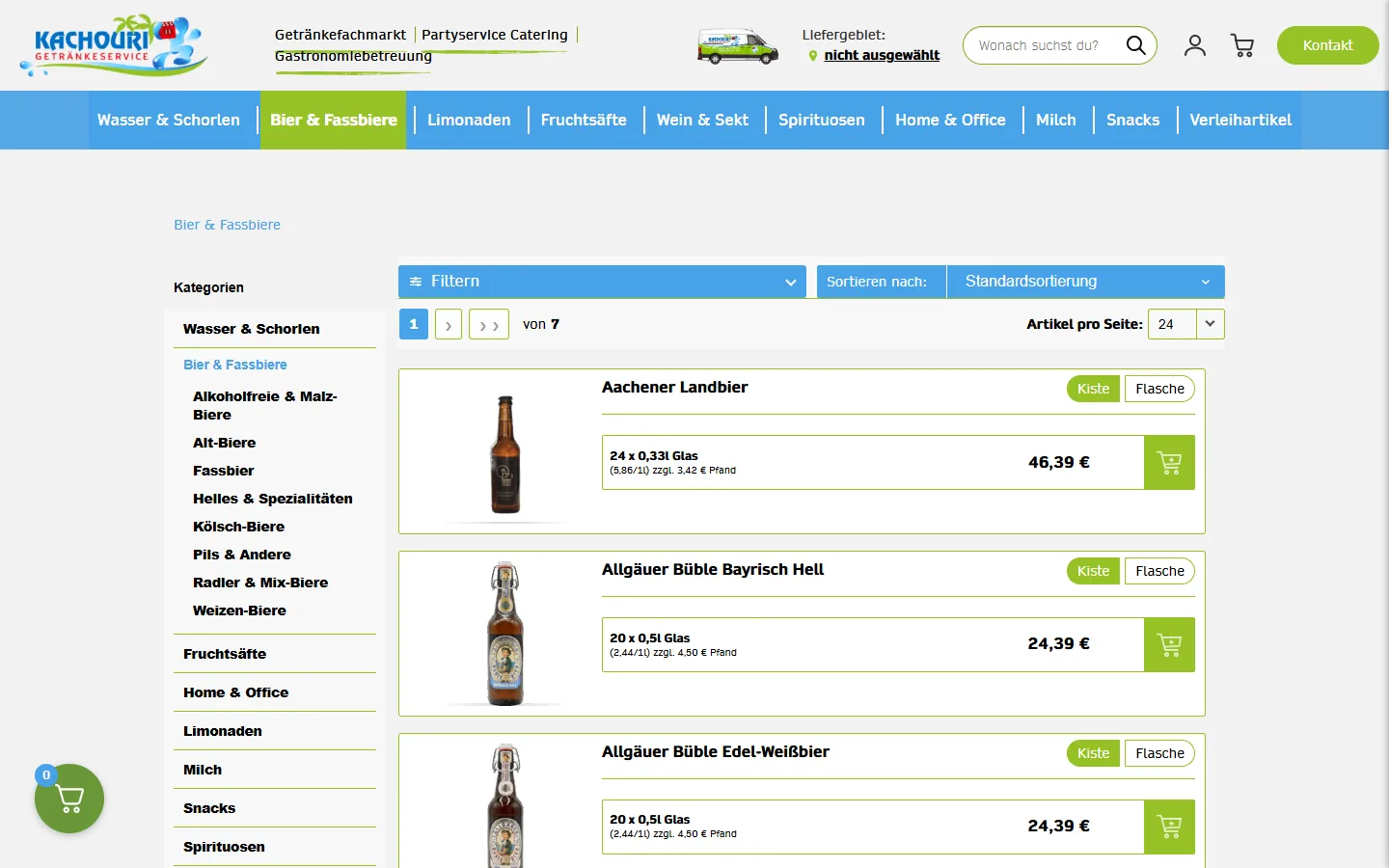
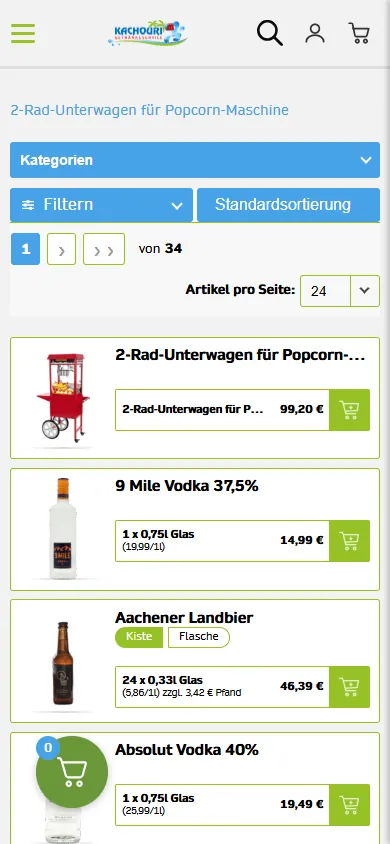
On our own migration for Kachouri Getränke-Service, a German drinks-delivery shop that moved from Shopware 5 to WooCommerce with 812 products, the product and category mapping was the heart of the work. We also took the chance to bring mobile CLS from 0.44 to 0. A migration is the right moment to fix performance, but only if the URLs and content are protected first.
Step 4: Preserve on-page signals
Rankings come from pages. If the new page says less than the old one, expect a drop.
- Keep the title tags, meta descriptions, H1s and main body content of pages that rank, unless you have a reason to improve them.
- Preserve or improve internal linking and breadcrumbs.
- Keep structured data, and add what was missing.
- Maintain image alt text and file names where sensible.
- Check canonical tags: each page should point to itself unless it is intentionally a duplicate, and the canonical should be the new URL.
- Confirm robots meta tags and robots.txt. Remove any
noindexorDisallow: /left over from staging. - Keep pagination, filters and faceted navigation under control so you do not create thousands of thin URLs.
A redesign with real content improvements is welcome, but separate large content rewrites from the technical migration where you can. Changing everything at once makes it impossible to diagnose a drop.
Step 5: Multilingual sites and hreflang
If you serve several languages or countries, hreflang needs special care during a migration. Google's documentation is strict:
- Reciprocal links. Each version must link to every other version, and those links must point back, or the tags will be ignored.
- Self-reference. Each page's set of annotations must include its own URL.
- Fully qualified URLs with protocol.
- Valid codes. Language (ISO 639-1) first, optional region (ISO 3166-1 Alpha 2) second; you cannot use a country code alone.
- x-default as a fallback for users whose language matches none of your versions.
- Placement in HTML
<link>tags, an HTTP header, or XML sitemap entries; all are treated equivalently.
When URLs change, hreflang must change with them: the old URLs in annotations will otherwise point to redirects, which weakens the signal. Update the annotations on the new site to use the final URLs, and re-check reciprocity after launch.
Step 6: Sitemaps and robots
Create and submit the new XML sitemap as soon as the site goes live. Google's sitemap guidance recommends:
- Listing only canonical URLs that you want in search results.
- Using fully qualified, absolute URLs in UTF-8.
- Keeping each sitemap under 50 MB uncompressed or 50,000 URLs, using a sitemap index for larger sites.
- Hosting it at the site root and submitting it through Search Console or a
Sitemap:line in robots.txt. - Using
<lastmod>only if the dates are consistently accurate; Google ignores<priority>and<changefreq>.
A practical trick during a move: temporarily keeping a sitemap of old URLs submitted alongside the new one helps Google discover the redirects faster. Remove it once the old URLs have been processed.
Submitting a sitemap is a hint, not a guarantee of crawling.
Step 7: Core Web Vitals and performance
A redesign often changes weight, scripts and layout, so test performance before launch, not after. Google recommends that site owners achieve good Core Web Vitals. The thresholds defined on web.dev, measured at the 75th percentile of real page loads on mobile and desktop separately, are:
- LCP 2.5 seconds or less.
- INP 200 milliseconds or less.
- CLS 0.1 or less.
Practical actions: size and compress images, reserve space for images, embeds and ads to avoid layout shift, limit third-party scripts, defer non-critical JavaScript and use caching. Do not rely on lab scores alone. Field data from the Core Web Vitals report in Search Console reflects what real visitors experience, though it needs time to update after launch.
Step 8: Search Console and Change of Address
Add and verify the old and new properties in Search Console before launch. For a move to a new domain or subdomain, Google provides the Change of Address tool. Important points from the documentation:
- Use it only when moving from one domain or subdomain to another; it is not for HTTP to HTTPS, www to non-www, or path changes within the same domain.
- You must own both properties with the same Google account, and they must be domain-level properties.
- Set up the 301 redirects first, including from the old homepage to the new one; the tool is meant for use after you have moved and redirected.
- Submit a request for every verified variant of the old domain, because it does not move subdomains under the domain, including www.
- Signals are forwarded and the new site is prioritised for 180 days; keep redirects in place at least that long, and longer if the old URLs still get search traffic.
- It does not remove the old site from the index, and you can cancel a request within 180 days.
Step 9: Launch-day and post-launch checklist
Before launch
- Staging fully tested, with
noindexor password protection removed at the right moment. - Redirect map implemented and tested on a copy.
- Robots.txt, canonicals, hreflang and structured data validated.
- Analytics and tag manager installed and firing.
- Forms, checkout and key conversions tested.
- Sitemaps ready.
On launch day
- Switch DNS or deploy; confirm HTTPS and the primary hostname.
- Crawl the old URL list: each should return a single 301 to a 200 page.
- Submit sitemaps; inspect key URLs in Search Console.
- Check robots.txt and a few pages for accidental
noindex. - Watch server errors.
First 4 to 12 weeks
- Monitor the Search Console Sitemaps, Pages (indexing) and Performance reports, plus server logs and analytics. Traffic should fall on the old URLs and rise on the new.
- Fix 404s that should have been redirected.
- Compare rankings and conversions with your benchmark.
- Resolve Core Web Vitals regressions.
- Keep redirects live for at least a year.
Common mistakes
- No URL map. Launching a new structure and hoping for the best.
- Redirecting everything to the home page.
- Leaving staging directives live.
noindexor a blocked robots.txt on the production site. - Chains and loops from stacked redirects (http to https to www to new path).
- Changing content, structure and domain at once.
- Forgetting non-HTML assets such as PDFs and images.
- Letting hreflang point to old URLs.
- Removing redirects after a few months.
Frequently asked questions
Will I lose traffic after a redesign?
You may see temporary fluctuations; Google says to expect them. With good preparation they are usually short and small. Severe, lasting drops almost always trace back to missing redirects, lost content or indexing blocks.
How long should I keep 301 redirects?
At least one year, according to Google's migration guide, and longer if the old URLs still receive traffic or links.
Do I need the Change of Address tool?
Only when moving to a different domain or subdomain. It is not needed for HTTPS moves, www changes or URL changes within the same domain.
Should I redesign and migrate at the same time?
If you can, separate them. Move first with minimal change, then improve. If the project requires doing both, keep a detailed benchmark so you can diagnose any decline.
Can I fix SEO after the fact?
Often yes, if you act quickly: restore missing redirects, correct canonicals and re-submit sitemaps. The longer errors stay live, the longer recovery takes.
Conclusion
A migration that preserves SEO is mostly disciplined preparation: benchmark, map every URL, redirect properly, keep the signals that rank, handle hreflang and sitemaps carefully, protect performance and monitor closely after launch. If you are choosing the technology behind the redesign, see our comparison of WordPress vs custom development, and our website development service for how we approach rebuilds. When you are ready to plan yours, contact us with the current site and your goals.